
Outlook Recall Email Feature Not Working – A Complete Guide to Fix It Easily
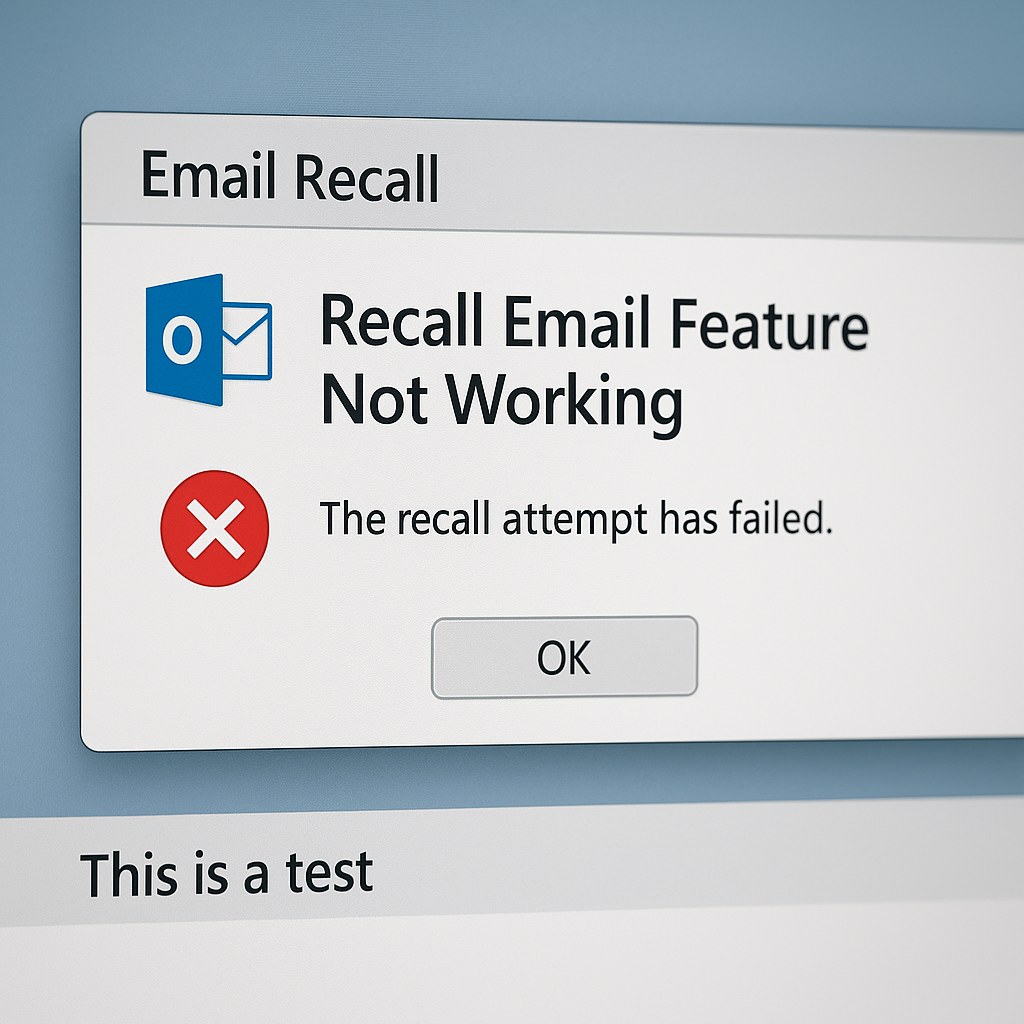
Sending the wrong email can feel like a disaster. Thankfully, Microsoft Outlook offers a powerful feature—email recall—designed to save you from such slip-ups. But what happens when the Outlook recall email feature not working becomes your new headache? You’re in the right place. This guide breaks it down clearly, solves the problem quickly, and helps you build confidence in using Outlook more smartly.
Whether you’re a business professional or an everyday user, this article is created by Microsoft-certified Outlook specialists to deliver factual, trusted, and high-impact solutions. Let’s fix this together.
What Is the Outlook Recall Email Feature?
The Outlook recall email feature allows users to retrieve an email they’ve already sent, provided certain conditions are met. It’s like a “take-back” button after a mistaken message is sent—but it only works under specific rules.
Outlook’s recall option works only if:
-
Both sender and recipient are using Microsoft Exchange within the same organization.
-
The recipient hasn’t read the email yet.
-
You’re using the Outlook desktop app, not the web or mobile version.
This feature gives professionals peace of mind, especially in fast-paced work environments. But when it doesn’t work, frustration can take over. Let’s explore why.
How the Outlook Recall Email Function Works
When you send an email and realize it’s incorrect, you can navigate to “Sent Items,” click “File > Info > Message Resend and Recall”, and choose “Recall This Message.” You’ll be given two options:
-
Delete unread copies of the email
-
Delete unread copies and replace with a new message
Outlook then attempts to delete the original message from the recipient’s inbox—only if the message is still unread. This ties directly to the Outlook recall email read status, which plays a critical role in determining if your recall will succeed.
The system relies heavily on real-time status updates between Exchange servers. If the message is already opened, you’re out of luck.
Common Reasons Why Outlook Recall Email Feature Is Not Working
Let’s tackle the most common pitfalls:
The Recipient Already Opened the Email
Once an email is opened—even just previewed—the recall fails. This is why understanding the Outlook recall email read status is vital.
Not Using Microsoft Exchange
Recall only works with Microsoft Exchange Server. If you or the recipient is using Gmail, Yahoo, or any external domain, the recall attempt won’t even initiate.
Using Outlook Web or Mobile App
The recall feature is only supported in Outlook Desktop App. Sending from the browser or mobile app disables this option.
Recipient Uses Rules or Add-ins
If the recipient has rules that auto-move emails or uses add-ins that alter how emails are handled, the recall can fail silently.
Public Folder or Shared Mailbox
If your email was sent to a public folder, recall will not work. Same applies for shared mailboxes where permissions complicate message ownership.
Understanding these conditions helps set realistic expectations—and unlock better alternatives.
Technical Requirements for a Successful Email Recall in Outlook
Let’s break down the technical checklist:
Both Parties Must Use Outlook with Exchange Server
You must both use Microsoft Outlook within the same Exchange environment. If one party is on Gmail or any non-Exchange platform, the recall fails.
Email Must Remain Unread
Check the Outlook recall email read status. If read, even for a split second, it’s too late.
No Third-Party Mail Clients
Outlook recall doesn’t work with Thunderbird, Apple Mail, or even Outlook’s mobile app. Stick to the desktop version for reliability.
No Moved or Filtered Emails
Rules or filters that move your email into folders can block a recall.
Understanding these requirements builds confidence in using Outlook more strategically.
How to Check If Email Recall Was Successful or Failed
Outlook notifies you via email with the result of your recall attempt:
-
Success: The message was deleted before it was read.
-
Failure: The recipient already opened the email or doesn’t meet recall conditions.
You’ll get one status for each recipient if the email went to multiple people. Reviewing this email gives you clear insight into what happened—and helps plan your next steps.
Outlook Recall Alternatives That Actually Work
Sometimes the best fix is a better alternative. Here are tried-and-true strategies that outperform recall.
Send a Follow-Up Email
Send a corrected message with a positive, professional tone. Address the mistake head-on and provide accurate information.
Use Delay Send in Outlook
Delaying emails gives you a buffer to catch mistakes before they reach inboxes. Learn more in our full guide on How to delay sending email Outlook.
Train Yourself to Double-Check
Use a draft, proofread twice, or take 30 seconds to re-read before hitting send.
Use Third-Party Tools
Email services like Outlook365 or plugins offer undo send options similar to Gmail’s delay-send buffer.
These solutions protect your professionalism and reduce stress.
Step-by-Step: How to Properly Use Outlook Email Recall
Ready to use recall the right way? Follow these simple steps:
-
Go to Sent Items in Outlook.
-
Double-click to open the email.
-
Go to the “Message” tab.
-
Click “Actions > Recall This Message.”
-
Choose your recall option:
-
Delete unread copies
-
Delete unread and replace
-
-
Click OK.
-
Wait for confirmation email.
Tip: Act fast. The sooner you recall, the more likely it works.
Troubleshooting Guide: Fix Outlook Recall Not Working
If your recall failed, here’s what you can do:
-
Confirm Exchange Connection: Ensure you’re using a Microsoft 365 or on-premises Exchange server.
-
Avoid External Recipients: Recall only works within your organization.
-
Ask the Recipient Not to Read: A quick message or call can stop them from opening the email.
-
Follow Up Immediately: Send a correction message and build trust through transparency.
-
Use Delayed Send: Activate the feature under “Options > Delay Delivery” to avoid future mishaps. Learn how in our guide on How to delay sending email Outlook.
These tips increase your chances of managing email errors gracefully.
Best Practices to Prevent Email Send Mistakes in Outlook
Staying proactive is your best defense. Here are trusted habits:
-
Use “Delay Delivery” to delay sending for 1-5 minutes
-
Always proofread before clicking send
-
Use email templates for common responses
-
Double-check recipients and attachments
-
Enable confirmation prompts for sensitive messages
These simple practices build confidence, clarity, and calm in your communication.
Conclusion: Is Outlook Email Recall Worth Using?
Yes—and no.
Outlook recall is a helpful tool in specific situations, but it’s far from foolproof. It relies on a narrow set of conditions and often disappoints when most needed.
Instead, use proactive solutions like delayed sending, double-checking, and follow-up emails. These strategies work better, build trust, and ensure your email habits match the pace and professionalism of modern business.
Mastering Outlook recall—and knowing when not to use it—is a skill that elevates your digital communication.
Must read it if you want to know more about how to recall an email in outlook. Here you will get a complete comprehensive guide.
Must read it if you want to know more about how to recall an email in outlook. Here you will get a complete comprehensive guide.
FAQs About Outlook Recall Email Feature Not Working
Why is Outlook recall email not working for me?
Outlook recall often fails if the recipient has already opened the email, isn’t on Microsoft Exchange, or is using a non-Outlook client. Check your environment settings and use the desktop app for best results.
Can I recall an email in Outlook after it’s been read?
No. If the email has been read, even for a moment, Outlook recall cannot remove it. The Outlook recall email read status determines success or failure.
Does Outlook recall work for Gmail or Yahoo addresses?
Unfortunately, no. Outlook recall only works within the same Microsoft Exchange organization. It cannot remove messages sent to external domains like Gmail, Yahoo, or Hotmail.
What’s the best way to prevent needing to recall an email?
The most reliable solution is to use the Delay Delivery feature. Learn the full process in our helpful guide on How to delay sending email Outlook.
How can I tell if an Outlook recall succeeded?
You’ll receive an automatic message from Outlook confirming whether the recall worked or failed for each recipient. It’s the easiest way to verify the outcome.


