
How to Recall Email in Outlook Web 2025: The Ultimate Guide
Mistakenly sent an email in Outlook Web and instantly regretted it? You’re not alone. With the constant pressure of work, it’s easy to hit “Send” a little too soon. Thankfully, recall email Outlook web 2025 brings powerful new tools to your rescue. In this comprehensive, easy-to-read guide, you’ll learn exactly how to use these features — and avoid future mishaps — all while keeping things secure, simple, and stress-free.
What’s New in Outlook Web 2025 Email Recall Feature
Microsoft continues to evolve Outlook Web with features designed for modern users — and the email recall function in 2025 is smarter than ever. Previously limited to the desktop app, Outlook Web now offers enhanced recall capabilities directly in your browser. This means you can unsend or recall emails even if you’re not using the full desktop software.
In Outlook Web 2025, the new recall system includes a real-time delivery check, auto-delay, and error warnings when messages can’t be recalled — all working in the background to save your day.
Better yet, the improved version works within Microsoft 365 environments, ensuring smoother performance and better support across devices.
Step-by-Step Guide: How to Recall an Email in Outlook Web 2025
Step 1: Open Outlook Web
Log in to your Microsoft 365 Outlook Web App from any browser. Make sure you’re using the 2025 version with updated recall features.
Step 2: Go to ‘Sent Items’
Navigate to the “Sent Items” folder on the left-hand menu. Find the email you want to recall.
Step 3: Click the Three Dots (More Actions)
Beside the email, click on the three-dot icon. This opens the “More Actions” menu.
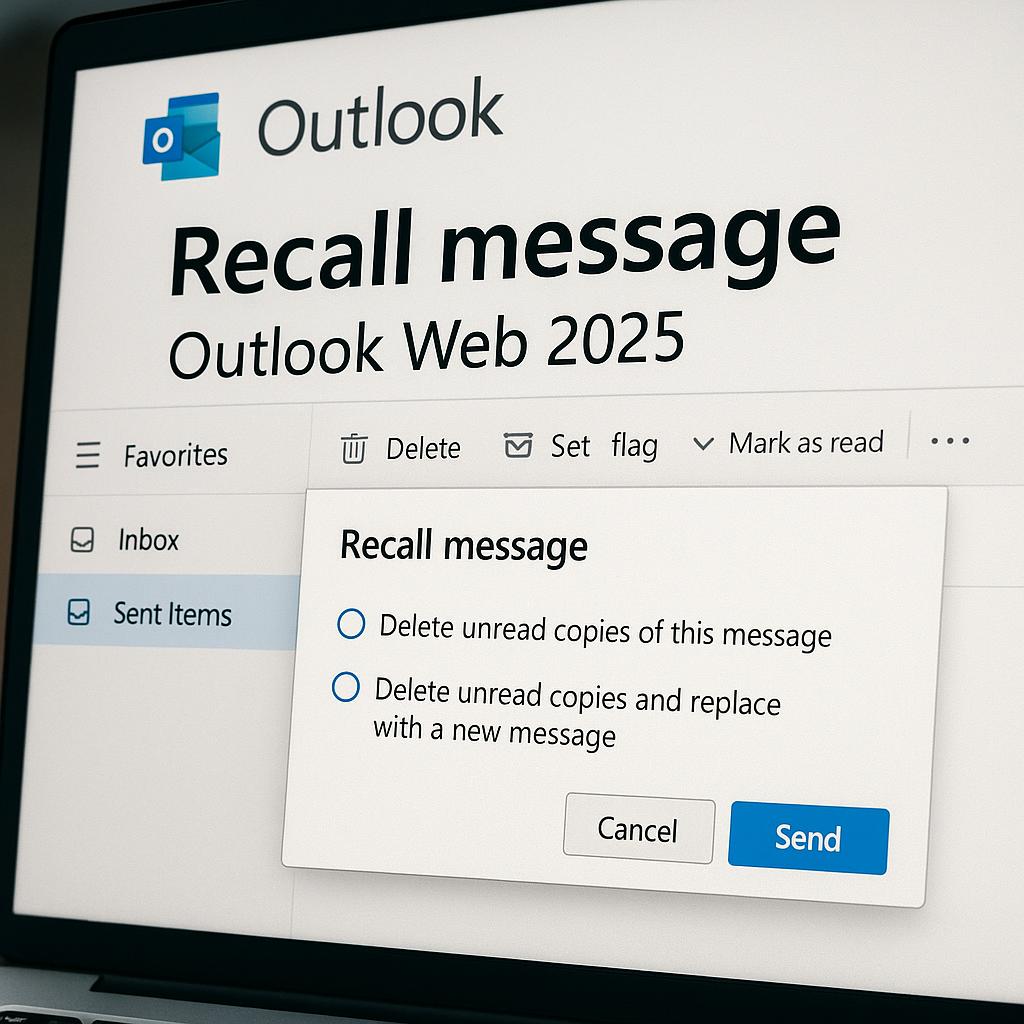
Step 4: Select ‘Recall Message’
Click “Recall Message.” You’ll see options to either:
-
Delete unread copies of this message
-
Delete unread copies and replace with a new message
Choose the action you need, then click Send.
Step 5: Confirmation Notification
You’ll receive a notification on the success or failure of the recall. If it fails, Outlook tells you exactly why — whether the message was read, sent externally, or blocked by policy.
Pro Tip: You can recall email Outlook Android 2025 using similar steps on your mobile app with the latest update!
Limitations of Recalling Emails in Outlook Web
While this feature is a life-saver, it has its limits. Outlook Web 2025 recall only works when:
-
Both sender and recipient are within the same Microsoft 365 organization.
-
The recipient hasn’t read the email.
-
The recipient is using Outlook (web or desktop), not other mail clients.
If the recipient is outside your organization — say a Gmail or Yahoo user — the recall won’t work. This is a known limitation for Outlook recall email external recipient scenarios.
It also won’t work if:
-
The message is already opened.
-
The recipient has mail rules or forwarding set up.
-
The message has left Microsoft’s secure servers.
Alternatives to Recall: Delay Send, Undo Send & Encryption
Outlook Web 2025 gives you more than one safety net.
Delay Send
Enable “Delay Send” by going to Settings > Mail > Compose and Reply > Undo Send. This adds a short timer (up to 10 seconds) before the email is actually sent.
Undo Send
This feature acts like a soft recall. During the delay window, you’ll see an “Undo” button. Just click it to stop the email in its tracks.
Message Encryption
Encrypting sensitive emails ensures security even if sent to the wrong person. You can enable this in the “Options” menu while composing a message.
Outlook Web vs Desktop App: Email Recall Capabilities Compared
| Feature | Outlook Web 2025 | Outlook Desktop |
|---|---|---|
| Recall Support | Yes | Yes |
| Works with External Recipients | No | No |
| Delay/Undo Send | Yes | Limited |
| Real-Time Status Alerts | Yes | Partial |
| Mobile Recall | Yes (Recall email Outlook Android 2025) | No |
Outlook Web is closing the gap with its desktop sibling. The web app now supports nearly all recall features, even including mobile recall.
How to Set Up Email Delay or Undo Send in Outlook Web 2025
Enable Delay Send
-
Go to Settings > Mail > Compose and Reply
-
Scroll down to Undo Send
-
Choose delay time (up to 10 seconds)
Now every email you send will have a short buffer to give you time to stop it.
Activate Undo Send
After sending a message, you’ll see a banner with “Sending…” and an Undo button. Click it to cancel the send.
These features give you peace of mind and an extra moment to catch mistakes before they leave your outbox.
Troubleshooting: Why Your Email Recall Didn’t Work
Recalling emails doesn’t always succeed. Here are common reasons why:
-
The email was already read
-
The recipient is outside your organization
-
The message was accessed via mobile or third-party email apps
-
The recipient has rules or forwarding set up
-
The server blocked the request due to policy settings
The best way to prevent issues is to test the recall feature internally and rely on “Undo Send” or “Delay Send” when in doubt.
Security & Compliance: What Happens to Recalled Emails in Microsoft 365
Microsoft 365’s secure server ecosystem ensures that recalls are handled with integrity. Messages recalled successfully are removed from the recipient’s inbox, and audit logs are updated for transparency.
For compliance teams, the recall feature integrates with Microsoft Purview, so even deleted messages are retained in legal holds or compliance archives.
Email recall in Microsoft 365 is built to support security-first organizations, ensuring peace of mind when mistakes happen.
Expert Tips: Best Practices to Avoid Email Mistakes in Outlook Web
-
Proofread before sending – enable spell check and grammar assistant
-
Use Delay Send as default
-
Avoid sending sensitive info without encryption
-
Double-check recipients, especially in CC/BCC
-
Set up recall alerts using Outlook Rules or Flow
Following these simple yet powerful habits can help you avoid embarrassing mistakes — and build trust with your audience.
Conclusion: Is Recalling Emails in Outlook Web Worth It in 2025?
Absolutely. With Outlook Web 2025, recalling emails has become smarter, faster, and more reliable. While it isn’t perfect — especially when dealing with external users — its improvements are real game-changers for busy professionals. And when used with Undo Send and Delay Send, you get a safety net that empowers you to work confidently.
Remember, tech can’t always fix human errors — but Outlook Web 2025 is getting very close.
Must read it if you want to know more about how to recall an email in outlook. Here you will get a complete comprehensive guide.
FAQs About Recall Email in Outlook Web 2025
Can I recall an email sent from Outlook Web in 2025?
Yes, Outlook Web 2025 supports email recall for messages sent within the same Microsoft 365 organization, as long as the recipient hasn’t opened the email yet. This is a significant improvement from earlier versions where recall was only available in the desktop app.
Why doesn’t email recall work in Outlook Web sometimes?
Email recall may fail if the recipient has already read the message, is using an email app outside of Outlook (like Gmail), or if the email has been forwarded or moved by a rule. It also doesn’t work with external recipients.
What is the difference between Undo Send and Recall in Outlook Web?
Undo Send stops the email from being sent during a short delay window, while Recall tries to remove the message from the recipient’s inbox after it has already been sent. Undo Send is proactive, while Recall is reactive.
Is there a time limit for recalling emails in Outlook Web App 2025?
There is no strict time limit, but recall only works if the message remains unread. Once the recipient opens it, recall is no longer possible. That’s why it’s important to act fast.
How do I enable the Undo Send feature in Outlook on the web?
Go to Settings > Mail > Compose and Reply, scroll down to Undo Send, and set a delay time (up to 10 seconds). Once enabled, you’ll have a short window to click “Undo” after sending each message.


