
Recall Email Outlook 365 Steps: The Complete, Proven Guide
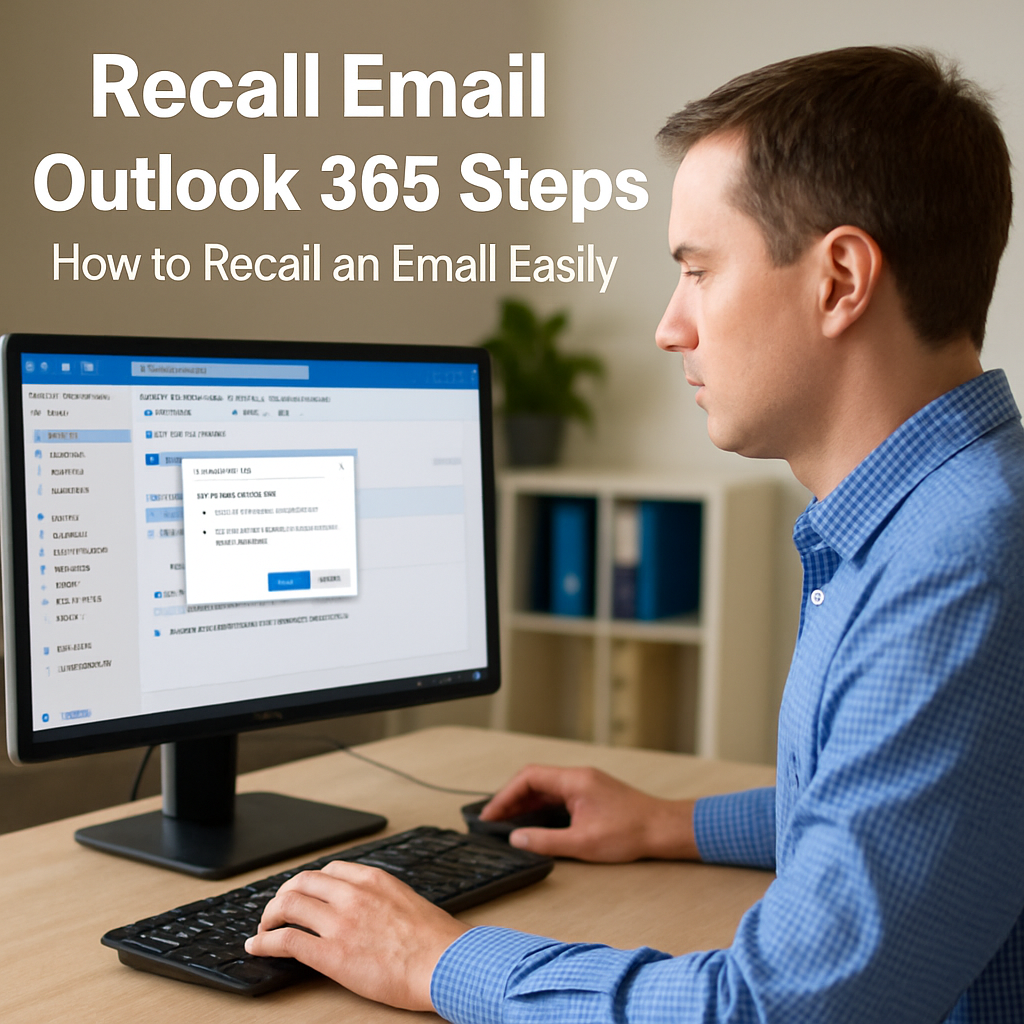
Mistakes happen. We’ve all hit “Send” too soon. But thanks to Microsoft Outlook 365, you have a powerful feature at your fingertips — Recall Email Outlook 365 Steps — that can save the day. In this comprehensive guide, you’ll learn exactly how to recall an email in outlook with proven steps, real-world tips, and expert-backed advice. Whether you’re a business professional, student, or busy executive, this guide empowers you to take control of your inbox with confidence.
Understanding the Outlook 365 Email Recall Feature
Outlook 365’s email recall feature is a lifesaver when you need to undo an accidental send. Imagine sending an important email with the wrong attachment or forgetting key information. Instead of panicking, Outlook allows you to retract that message before the recipient opens it. This is not science fiction — it’s a built-in capability designed for real-world mishaps.
Email recall works by attempting to delete unread copies of the email from the recipient’s inbox. It functions best when both sender and receiver are within the same Microsoft Exchange or Microsoft 365 organization. However, knowing the limitations and exact steps increases your success rate dramatically.
Step-by-Step Guide to Recall an Email in Outlook 365 Desktop App
The Outlook 365 desktop app offers a seamless way to recall emails if you act fast. If you’re wondering how to recall sent email Outlook, here’s how you do it:
Open Sent Items
Right after sending your email, navigate to the “Sent Items” folder in your Outlook 365 application.
Double-click the Email to Open It
You must open the email fully for the recall option to appear. Simply highlighting it won’t work.
Select File Tab and Locate ‘Resend or Recall’
In the opened email window, click the “File” tab on the top ribbon. Look for the “Resend or Recall” option and click it.
Choose ‘Recall This Message’
A new dialog box appears. Select ‘Recall This Message’.
Select Your Recall Option
You’ll have two choices:
-
Delete unread copies of this message.
-
Delete unread copies and replace with a new message.
Choose the one that suits your situation best. Often, replacing the message helps correct mistakes while maintaining professionalism.
Monitor the Recall Status
You may choose to receive notifications about the success or failure of the recall. Outlook will inform you if the recall attempt was successful for each recipient.
How to Recall an Email Using Outlook 365 Web App (OWA)
Outlook 365 Web App, also known as OWA, currently does not support full email recall like the desktop version. This limitation frustrates many users. However, Microsoft continues improving its cloud features, and alternatives exist:
Use Delay Delivery (Undo Send)
OWA offers an “Undo Send” option, but only for a few seconds after sending. Navigate to Settings > Mail > Compose and Reply > Undo Send. Set your preferred cancellation period (up to 10 seconds).
Alternative Workarounds
-
Send a follow-up correction email.
-
Use Outlook Desktop when possible for full recall capability.
-
Implement company-wide mail rules for delay-sending high-risk emails.
While not as robust as the desktop version, OWA gives you some control to minimize errors before they reach the recipient’s inbox.
Key Requirements for Successful Email Recall in Outlook 365
Recalling an email isn’t guaranteed. Several technical conditions must be met for a successful recall:
Both Users Must Use Microsoft Exchange or Microsoft 365
Recall works best when both sender and recipient are within the same organization and server.
Recipient’s Email Must Be Unread
If the recipient has already opened your email, recall will fail.
Recipient Must Be Using Outlook Desktop
If the recipient reads their email on a mobile device, web browser, or a non-Outlook client, recall functionality may be compromised.
No Rules Should Automatically Move Emails
If the recipient has rules that move incoming mail from the inbox to a folder, recall attempts may fail.
Understanding these rules can dramatically increase your chances of success and set realistic expectations.
Email Recall Limitations: Why Recalls Sometimes Fail
Despite its brilliance, Outlook’s recall feature isn’t foolproof. Here are common reasons recalls fail:
-
The recipient opened the email before recall initiated.
-
The recipient uses a non-Outlook client.
-
External email recipients outside your organization.
-
Email rules automatically moved the email from the inbox.
-
Server synchronization delays.
Knowing these pitfalls empowers you to act faster and set preventive measures in place.
Alternative Solutions if Email Recall Fails
Sometimes the recall won’t succeed. But don’t worry — you still have powerful alternatives:
Send a Correction Email
Immediately follow up with a professional, concise email explaining the mistake. Transparency builds trust.
Implement a Delay Delivery Rule
Prevent future errors by setting all outgoing emails to delay by 1-5 minutes. This buffer gives you precious time to catch mistakes before they go out.
Use Email Disclaimers
Add disclaimers stating that accidental emails should be disregarded if unintended. While not foolproof, they add a layer of professionalism.
Company-Wide Policies
Implement IT policies that allow for message moderation or admin recalls in sensitive environments.
Proactivity often trumps reactivity. These options help safeguard your professional reputation.
How to Use “Undo Send” in Outlook 365: A Preventive Strategy
Prevention is often better than cure. Outlook’s “Undo Send” feature, though limited in timeframe, is incredibly effective for minor errors:
Enable Undo Send
Go to Settings > Mail > Compose and Reply > Undo Send.
Set Your Cancellation Period
You can select between 0 to 10 seconds. This short buffer gives you an immediate safety net for catching errors right after you hit send.
Use Delay Delivery for Longer Buffers
If 10 seconds isn’t enough, set up a delay delivery rule via File > Manage Rules & Alerts. This can delay all outgoing emails for several minutes.
By adding these preventive layers, you significantly reduce the need for using the more complex recall feature.
Email Recall vs Email Retraction: Know the Difference
The terms “recall” and “retraction” are often used interchangeably but mean slightly different things in technical contexts:
Email Recall
-
Attempts to delete unread emails from recipient inboxes.
-
Limited to Microsoft Exchange environments.
-
Works only under specific conditions.
Email Retraction
-
Often used in compliance environments.
-
Usually involves IT administrators removing emails from mailboxes after they’ve been delivered.
-
More powerful but requires admin-level access and legal oversight.
Understanding the difference helps set appropriate expectations when discussing solutions with IT or compliance teams.
Best Practices to Avoid Needing to Recall Emails
While recall features are powerful, prevention is always preferable. Here are expert-backed best practices:
Double-Check Recipients and Attachments
Verify email addresses and ensure correct files are attached before sending.
Proofread Thoroughly
Even small typos can create big misunderstandings. A quick proofread saves you from future headaches.
Implement Delay Send Rules
Setting a universal delay on all outgoing emails buys you crucial extra time.
Use Collaboration Tools
Collaborate in shared cloud documents rather than attaching files that may become outdated quickly.
Leverage Drafts
For sensitive emails, write your message, save it as a draft, and revisit it after some time before hitting send.
These habits build a culture of careful, professional communication.
Outlook 365 Email Recall on Mobile Devices
Currently, Outlook’s mobile apps (iOS and Android) do not support the email recall feature. This limitation emphasizes the importance of cross-device testing and preventive strategies like delay send rules, especially if you often send important emails from your phone.
If you’re primarily a mobile user, consider using the desktop app for critical messages that may require recall capabilities.
The Future of Email Recall: Exciting Innovations Ahead
Microsoft is actively enhancing its email recall features through cloud-based improvements and artificial intelligence:
AI-Powered Safety Tools
AI tools now scan emails for potential errors before sending. These include detecting missing attachments or unintended recipients.
Cloud-Based Recall Improvements
Cloud-native recall systems offer better synchronization across devices, improving recall success rates in hybrid work environments.
Compliance and Governance Integration
Advanced compliance policies allow IT admins greater control over email distribution, giving organizations more confidence when sensitive emails need to be withdrawn.
As technology evolves, so does our ability to communicate safely and securely. The future looks incredibly promising for email management professionals and organizations alike.
Conclusion
Email recall in Outlook 365 is a powerful feature that can rescue you from embarrassing mistakes, but it comes with specific conditions and limitations. By fully understanding how how to recall an email in outlook using Recall Email Outlook 365 Steps, you empower yourself to act swiftly and confidently. Even when recalls fail, alternative solutions and preventive measures ensure your professional communication stays strong, credible, and trustworthy. With continuous improvements from Microsoft and best practices rooted in expert advice, you can confidently manage your inbox — knowing you have the tools and knowledge to handle the unexpected.
FAQs About Recall Email Outlook 365 Steps
How can you recall an email in Outlook 365?
You can recall an email by opening the message from the Sent Items folder, selecting “File,” then choosing “Resend or Recall,” and clicking “Recall This Message.” You can delete unread copies or replace them with a corrected version. This works best within the same Microsoft Exchange organization.
How long do you have to recall an email in Outlook 365?
Technically, you can attempt recall anytime, but success depends on whether the recipient has already opened the email. The sooner you act, the higher the chances of success. Speed is crucial.
Why does email recall fail in Outlook 365?
Recall can fail for several reasons: if the email has been read, if the recipient is outside your organization, if they use a non-Outlook client, or if email rules moved the message to another folder. These factors prevent Outlook from accessing and deleting the unread message.
Can you recall an email in Outlook 365 Web App?
Outlook 365 Web App does not fully support recall like the desktop version. However, you can enable “Undo Send” for a few seconds of cancellation time. For full recall capability, use the Outlook desktop client.
What’s the best way to prevent needing to recall emails in Outlook 365?
Preventive measures include enabling delay delivery, using “Undo Send,” double-checking recipients and attachments, thorough proofreading, and establishing professional email habits. Prevention minimizes the need for reactive measures like recall.


